Key Takeaways
- Google My Business is now called Google Business Profile and requires a Google Account to sign in
- Access your business profile by visiting business.google.com and clicking “Manage now” with the correct Google account
- Ensure you’re logged into the same Google account that was used to create or claim your business profile
- You can manage multiple business profiles by switching between different Google accounts
- Verified Business Profiles help customers find your business on Google Maps and Search for free
Understanding Google Business Profile Sign-In Process
When you search for how to sign in to Google My Business, you’re actually looking to access what Google now calls Google Business Profile. This rebrand happened in 2021, but the core functionality remains the same – you need a Google Account to manage how your business appears on Google Search and Google Maps.
Your business profile serves as a vital connection point between your company and potential customers. Once you sign in successfully, you can manage everything from business hours and contact information to photos, reviews, and posts. This free service helps customers find your business when they search for products or services you offer.
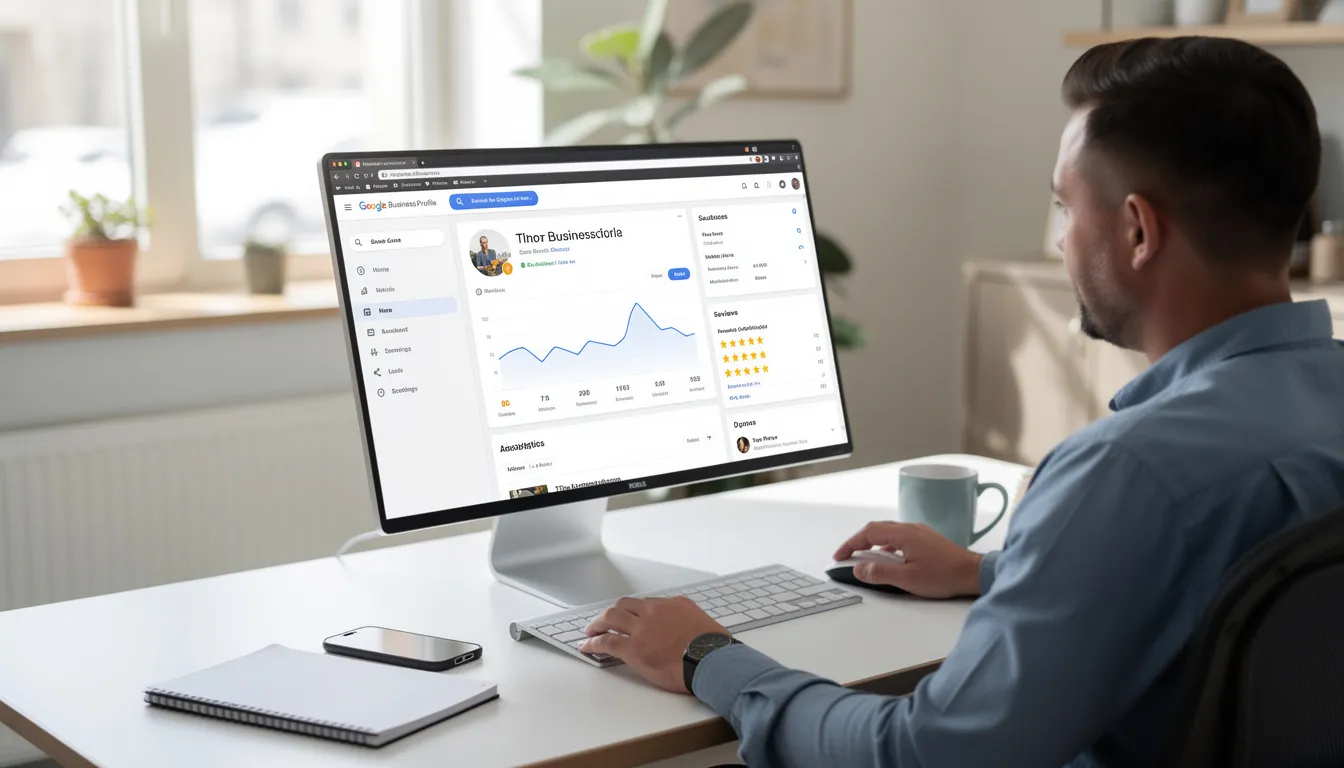
The sign-in process grants you access to modify critical business details that directly impact how customers discover and interact with your business. Whether you’re responding to reviews, updating holiday hours, or adding new photos, maintaining an active and verified business profile is essential for local visibility.
Prerequisites for Signing In
Before you can sign in to Google My Business, you’ll need several key components in place. First and most importantly, you must have an active Google Account. This could be a Gmail address, a Google Workspace account through your company, or any email address that’s been registered with Google services.
Your business must already be added or claimed on Google Business Profile. If you haven’t done this yet, you’ll need to create a business profile first before you can sign in to manage it. The process requires verification through various methods depending on your business type and location.
You’ll also need access to the specific email address associated with your Google Account. Keep in mind that if multiple team members have been managing your business profile, you might need to determine which Google Account was originally used to claim the business.
A stable internet connection and a supported web browser like Chrome, Firefox, Safari, or Edge will ensure a smooth sign-in experience. Mobile devices can also access the business profile management interface through any mobile browser.
Step-by-Step Sign In Process
The most straightforward way to sign in to Google My Business is through the official Business Profile Manager. Start by opening your web browser and navigate to business.google.com. This is the primary hub for business profile management, especially useful for agencies and businesses with multiple locations.
On the homepage, you’ll see a prominent “Manage now” button. Click this to begin the sign-in process. You’ll be redirected to Google’s authentication system where you need to enter your Google Account credentials.
Enter the email address associated with your Google Account first, then click “Next.” On the following screen, provide your password. If you have two-factor authentication enabled, complete that verification step as well.
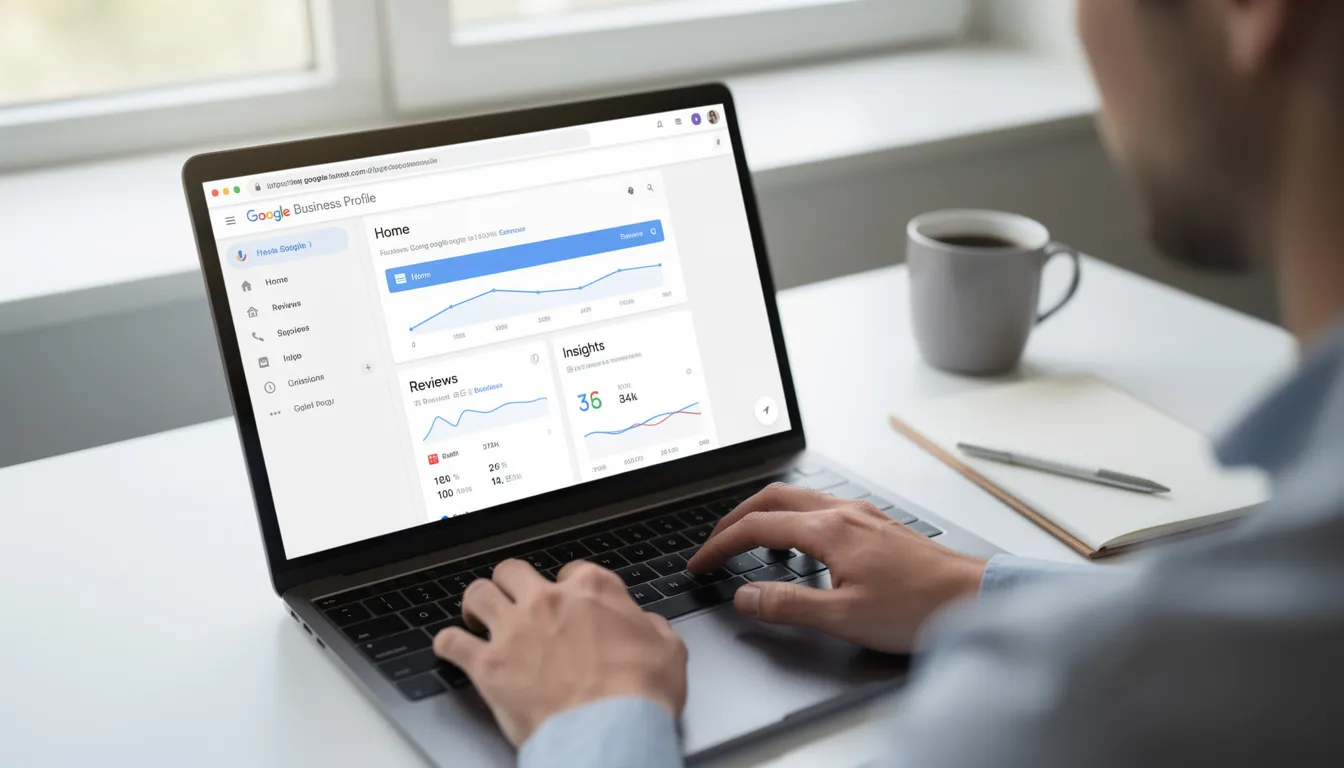
After successful authentication, you’ll see your business dashboard. If you manage multiple business locations, they’ll appear as a list where you can select the specific profile you want to update. Single-location businesses will typically go directly to their management interface.
The dashboard provides access to all your business profile features including basic information updates, photo management, review responses, and insights about how customers find your business.
Alternative Sign-In Methods
Through Google Maps
Google Maps offers another convenient path to access your business profile. This method works particularly well for quick updates and is often easier to find on mobile devices. Open Google Maps and ensure you’re signed in to your Google Account.
Search for your business name in the Maps search bar. When your business appears, look for management options. If you’re the verified owner or manager, you’ll see either “Own this business?” or “Manage this business” depending on your verification status.
Clicking this link provides direct access to editing tools within the Maps interface. You can update hours, add photos, respond to reviews, and make other essential changes without navigating to a separate dashboard.
Through Google Search
Google Search provides the most integrated management experience. Simply search for your business name on Google while signed into your Google Account. Your business information will appear in the knowledge panel on the right side of search results.
Look for the “Own this business?” link if your business hasn’t been claimed, or management options if you’re already verified. This method seamlessly integrates business management with the search experience your customers use daily.
When you click to manage through search, you’ll access similar editing capabilities as other methods, but within the context of how your business actually appears to searching customers.
Troubleshooting Common Sign-In Issues
Many business owners encounter challenges when trying to sign in to Google My Business. The most common issue involves using the wrong Google Account. If you don’t see your business after signing in, you’re likely logged into a different account than the one used to originally claim your business profile.
Try signing out completely and signing back in with any other Google Accounts you might have. Check both personal Gmail accounts and business email addresses that might have been registered with Google services. Your business was probably claimed using a company email rather than a personal account.
If your business doesn’t appear in any account you try, it might have been created under a former employee’s Google Account. In this case, you’ll need to go through Google’s business profile recovery process. Search for your business on Google and click “Own this business?” to start reclaiming it.

Browser-related problems can also prevent successful sign-in. Clear your browser cache and cookies, disable extensions temporarily, or try using incognito mode. Sometimes stored login information conflicts with current authentication attempts.
Password issues should be resolved through Google’s standard account recovery process. Use the “Forgot password?” link on the sign-in screen and follow the prompts to reset your credentials. Having two-factor authentication enabled can sometimes complicate this process but provides important security benefits.
Managing Multiple Business Profiles
Business owners with multiple locations or marketing professionals managing client accounts need efficient ways to switch between different business profiles. The key is understanding that each Google Account can own or manage multiple business profiles, and you can easily switch between accounts in your browser.
Use the Google Account selector in the top-right corner of any Google service to switch between different logged-in accounts. This allows you to manage various business profiles without constantly signing in and out of different accounts.
When adding team members to help manage your business profiles, assign appropriate permission levels rather than sharing account credentials. Google provides different roles including owners and managers, each with specific capabilities and restrictions.
Keep detailed records of which Google Account manages which business profile, especially if you’re handling multiple client accounts or business locations. This documentation becomes crucial when staff changes occur or when troubleshooting access issues.
For agencies managing many client profiles, consider using the Business Profile Manager interface at business.google.com as it provides the most comprehensive view of all profiles associated with your account.
Best Practices After Signing In
Once you’ve successfully signed in to Google My Business, focus on maintaining accurate and compelling business information. Update your business hours regularly, especially during holidays or special events when your schedule might differ from normal operations.
Upload high-quality photos that showcase your business, products, and services. Images significantly impact customer perception and can influence whether potential customers choose to visit or contact your business. Include photos of your storefront, interior, staff, and popular products or services.
Respond to customer reviews promptly and professionally, both positive and negative ones. Your responses demonstrate to potential customers that you value feedback and actively manage your business presence. This engagement can improve your business’s reputation and search visibility.
Create regular posts about offers, events, news, and business updates. These posts appear in your business profile and can help attract customers while showing that your business is active and current. Posts can include photos, videos, and links to your website for more information.
Monitor your business insights to understand how customers find your business, what actions they take, and which content performs best. This data helps inform your broader marketing strategy and identifies opportunities for improvement.
Security Tips for Your Business Profile
Protecting your Google Business Profile requires implementing strong security measures on your Google Account. Enable two-factor authentication immediately – this adds an extra layer of protection that significantly reduces the risk of unauthorized access to your business profile.
Create a strong, unique password for your Google Account that’s not used for any other online accounts. Consider using a password manager to generate and store complex passwords securely. Your business profile contains valuable information that competitors or malicious actors might want to manipulate.
Regularly review who has access to your business profile through the Users section in your dashboard. When employees leave your company, promptly remove their access to prevent potential issues. Each person should use their own Google Account rather than sharing credentials.

Keep your account recovery information updated, including your recovery email address and phone number. If you ever lose access to your account, having current recovery information makes the restoration process much easier and faster.
Monitor your business profile regularly for any unauthorized changes. Set up notifications when possible to alert you to modifications made to your profile. Quick detection of unauthorized changes allows you to address issues before they impact your business reputation.
FAQ
What if I forgot which Google Account I used to create my business profile?
Start by trying to sign in with all your Google Accounts at business.google.com. Check your various email inboxes for Google Business Profile verification emails or notifications, which can help identify the correct account. You can also search for your business on Google while signed into different accounts – management options will only appear when you’re logged into the account that controls your profile. If you still can’t locate the correct account, contact Google Business Profile support for assistance with account recovery.
Can I transfer my business profile to a different Google Account?
While you cannot directly transfer ownership between Google Accounts, you can accomplish this by adding a new manager with owner permissions. Access your business profile, go to the Users tab, and add the new Google Account as an owner. Once the new account has full owner access, they can remove the original account. Complete this process carefully to ensure you don’t accidentally lose access to your business profile during the transition.
Why does Google prompt me to create a new business when I try to sign in?
This typically happens when you’re signed into a different Google Account than the one used to create your business profile. Sign out completely and try signing back in with other Google Accounts you might have, especially company email addresses. Your business profile might have been created under a business email rather than a personal Gmail account. If your business profile was suspended or removed due to policy violations, you might also see prompts to create a new profile.
Can I sign in to Google Business Profile using my phone?
Yes, you can access your business profile through any mobile web browser by visiting business.google.com. The interface is mobile-responsive and provides most of the same management capabilities as the desktop version. You can also manage certain features directly through the Google Maps app by searching for your business and accessing management options. Mobile access is convenient for quick updates like responding to reviews or updating hours.
What should I do if someone else claimed my business profile?
Use Google’s business profile recovery process by searching for your business on Google and clicking “Own this business?” You’ll need to provide documentation proving your ownership, such as business licenses, utility bills, or official registration documents. Contact Google Business Profile support for assistance with unauthorized claims, as they can guide you through the verification process. The recovery process may take several days to complete once you submit proper documentation, but it’s the most reliable way to regain control of your legitimate business profile.